If you need to host a legacy ASP.NET Framework application on AWS, you don't necessarily need to rewrite it or move your infrastructure to Azure.
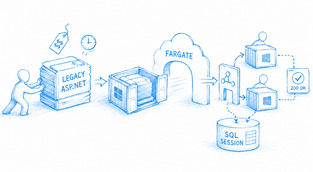
AWS Fargate can run ASP.NET Framework applications in Windows containers using Amazon ECS, allowing you to run existing IIS applications on AWS without managing Windows servers yourself.
In this guide, I'll show you how to containerize a legacy ASP.NET Framework application, deploy it to Amazon ECS with AWS Fargate, handle ASP.NET session state, configure load balancer health checks, and understand the costs and limitations of running Windows containers on Fargate.
Downsides
Windows container image size
The main downside of running ASP.NET on Fargate is the size of Windows container images.
For traditional ASP.NET applications running on the .NET Framework, Microsoft recommends using Windows Server Core as the base image. Windows container images are considerably larger than the Linux images you may be used to working with. For reference, the Windows Server 2022 Server Core image was around 2.76 GB uncompressed when Windows Server 2022 was released.
The final image will be larger once you add ASP.NET, the .NET Framework, your application, and any other dependencies. There is no fixed image size, so the actual size depends on the Windows version, Microsoft image, and your application.
This becomes important when deploying or autoscaling the application. When Fargate starts a new Windows task, it needs to download the container image before the container can start. Large images therefore mean longer startup times, which is something you need to account for when configuring autoscaling.
Minimum Windows Fargate task size
The second downside is the minimum amount of compute you can allocate.
Windows containers on Fargate require at least 1 vCPU and 2 GB of memory. With Linux containers, Fargate can go as low as 0.25 vCPU and 512 MB of memory. This means that even a very small ASP.NET application has a higher minimum running cost simply because it is running on Windows.
Windows Fargate pricing
Windows containers are also considerably more expensive to run on Fargate than Linux containers.
The smallest Windows Fargate task you can run has 1 vCPU and 2 GB of memory. Using the current AWS pricing for US East (N. Virginia), one task costs approximately:
| Charge | Per hour | 30 days, 24/7 |
| 1 vCPU | $0.0915 | $65.88 |
| 2 GB memory | $0.0200 | $14.40 |
| Windows OS charge | $0.0460 | $33.12 |
| Total | $0.1575 | $113.40 |
The important part here is the Windows OS charge. AWS adds approximately $0.046 per vCPU per hour specifically for running Windows. With the minimum 1 vCPU task running continuously, that is about $33.12 per month just for the Windows operating system charge.
This is billed by AWS as a Windows OS charge. You are not paying Microsoft directly or buying a separate Windows license yourself; the Windows licensing cost is included as part of the Fargate billing.
It is also important to understand that the Windows OS charge is not the only reason Windows costs more. AWS also charges more for the Windows vCPU and memory compared with Linux.
Windows vs Linux cost
For comparison, an equivalent Linux Fargate task with 1 vCPU and 2 GB of memory costs approximately $0.0494 per hour, or about $35.55 per month running continuously.
So the comparison looks like this:
| Task | Approx. monthly cost |
| Linux — 1 vCPU / 2 GB | $35.55 |
| Windows — 1 vCPU / 2 GB | $113.40 |
| Difference | $77.85 |
Of that $77.85 difference, approximately $33.12 is the explicit Windows OS charge. The remaining difference comes from the higher Windows Fargate CPU and memory rates.
In other words, the same 1 vCPU and 2 GB task costs roughly 3.2 times more on Windows than on Linux before adding things such as load balancers, data transfer, CloudWatch, public IPv4 addresses, or other AWS services.
Supported Windows versions
AWS currently supports Windows Server 2019 and Windows Server 2022 containers on Fargate, in both Full and Core variants.
Unsupported features on Windows Fargate
There are also several AWS features available to Linux containers on Fargate that are not currently supported when running Windows containers.
According to the AWS documentation, Windows containers on Fargate do not support:
- Amazon FSx
- Amazon EFS volumes
- Amazon EBS volumes
- Fargate Spot
- ENI trunking
- gMSA (group Managed Service Accounts) for Windows containers
- AWS App Mesh service and proxy integration
- FireLens log router integration
- Image volumes
- The
environmentFilestask definition parameter - The
maxSwaptask definition parameter - The
swappinesstask definition parameter
Other Windows Fargate limitations
There are a few additional differences worth knowing about.
The VOLUME option inside a Dockerfile is ignored for Windows containers on Fargate. If your application needs local storage, AWS recommends using bind mounts defined in the ECS task definition instead.
Windows Fargate also does not support the ulimits task definition parameter, which Linux Fargate supports.
Seekable OCI support
Another important limitation is Seekable OCI (SOCI). On Linux, Fargate can use SOCI to start a container before the entire image has been downloaded. This is particularly useful with large container images. Windows containers on Fargate do not support SOCI, so the complete Windows container image needs to be downloaded before the container can start.
This matters for ASP.NET applications because Windows container images are already relatively large. Without SOCI lazy loading, the size of the image has a direct impact on how quickly a new task can start during a deployment or autoscaling event.
Architecture and task size limitations
Windows Fargate tasks are also limited to the x86-64 architecture. Linux Fargate can run on both x86-64 and ARM64.
Finally, Windows Fargate supports a smaller range of task sizes. Windows starts at 1 vCPU and 2 GB of memory and currently goes up to 4 vCPU and 30 GB of memory. Linux Fargate additionally supports 0.25 and 0.5 vCPU configurations at the low end and 8, 16, and 32 vCPU configurations at the high end.
Making ASP.NET stateless
How ASP.NET sessions work by default
Other than these differences, there is nothing stopping you from running and scaling an ASP.NET application on Fargate. The main thing you need to pay attention to is how the application handles user sessions.
By default, classic ASP.NET Framework stores session data using InProc mode. This means the actual session data is stored in the RAM of the IIS worker process running your application.
The browser only stores a cookie containing the session ID, such as ASP.NET_SessionId. The actual data associated with that session remains in the memory of the server.
Why InProc becomes a problem with Fargate
This works perfectly well when you have one server, but it becomes a problem when you start running multiple Fargate tasks behind a load balancer.
For example, a user's first request might go to Task A, where their session is created and stored in memory. Their next request might go to Task B. The browser will still send the same session ID, but Task B does not have the corresponding session data because it exists only in the memory of Task A.
The same problem occurs if Task A crashes, is replaced during a deployment, or is terminated by autoscaling. Everything stored in its memory disappears with it.
Fortunately, ASP.NET Framework already has a solution for this, and in many cases you do not need to rewrite your application's session handling.
ASP.NET session-state options
ASP.NET supports several session-state modes:
InProc— stores session data in the memory of the IIS process. This is the default.StateServer— stores session data in a separate ASP.NET State Service.SQLServer— stores session data in SQL Server.Custom— allows you to use your own session-state provider.Off— disables ASP.NET session state completely.
For a Fargate deployment, the important part is moving the session state outside of InProc.
Store ASP.NET sessions in SQL Server
For example, you can configure ASP.NET to store sessions in SQL Server directly from Web.config:
Configure Web.config
<configuration>
  <system.web>
    <sessionState
      mode="SQLServer"
      sqlConnectionString="data source=YOUR_SQL_SERVER;user id=USERNAME;password=PASSWORD"
      cookieless="false"
      timeout="20" />
  </system.web>
</configuration>
The mode="SQLServer" setting tells ASP.NET to stop keeping session state inside the IIS process and use SQL Server instead.
Prepare SQL Server for session state
Before this works, the SQL Server needs the ASP.NET session-state database and stored procedures. Microsoft provides the aspnet_regsql.exe utility for doing this.
For example:
aspnet_regsql.exe -S YOUR_SQL_SERVER -E -ssadd -sstype p
The important option here is:
-sstype p
This tells ASP.NET to store the session data persistently inside the ASPState database.
Without this option, the default configuration stores the session data in SQL Server's tempdb. That still allows multiple Fargate tasks to share sessions, but the session data will disappear if SQL Server itself is restarted.
If SQL authentication is being used instead of Windows authentication, the same setup can be performed using a username and password:
aspnet_regsql.exe -S YOUR_SQL_SERVER -U USERNAME -P PASSWORD -ssadd -sstype p
Existing application code does not need to change
Once this is configured, existing application code such as:
Session["UserId"] = 123;
Session["Cart"] = cart;
normally does not need to change. ASP.NET handles storing and retrieving the session from SQL Server instead of keeping it in local memory.
One thing to be aware of is that objects placed inside Session must be serializable when using SQLServer mode. With InProc, ASP.NET can keep arbitrary objects directly in memory, but once session state is moved outside the IIS process, ASP.NET needs to serialize those objects before storing them.
Once the session data is stored in a shared location, it no longer matters which Fargate task receives the next request. Every task can access the same session data.
This means ECS can start additional tasks when traffic increases, terminate tasks when traffic decreases, replace unhealthy tasks, or deploy a new version of the application without destroying the user's session.
Sticky sessions vs shared session state
Another option is to enable sticky sessions on the Application Load Balancer, which attempts to keep the same user connected to the same Fargate task. While this can work, it does not make the application truly stateless. If that particular task disappears, its in-memory session disappears with it.
Moving session state outside the container is therefore the better approach when you want to take full advantage of Fargate and ECS autoscaling.
Once your application no longer depends on data stored inside a specific task, you can run multiple copies behind an Application Load Balancer and scale them up and down like any other containerized application on AWS.
Building the ASP.NET Docker image
What the Microsoft base image includes
Putting an ASP.NET Framework application inside a container is simpler than it might initially seem.
Microsoft already provides an official ASP.NET Framework container image that includes:
- Windows Server Core
- IIS 10
- .NET Framework
- ASP.NET support for IIS
- The service required to keep IIS running inside the container
This means that you do not need to install Windows, IIS, or ASP.NET yourself.
Create a minimal ASP.NET application
For a very basic example, we can create a container that runs a single ASP.NET page.
Create a directory containing these two files:
Dockerfile
Default.aspx
Default.aspx
The Default.aspx file can be as simple as:
<%@ Page Language="C#" %>

<!DOCTYPE html>
<html>
<head>
    <title>ASP.NET on AWS</title>
</head>
<body>
    <h1>Hello World from ASP.NET</h1>
    <p>Server time: <%= DateTime.UtcNow %></p>
</body>
</html>
Using the server time is useful here because it confirms that the page is actually being processed by ASP.NET rather than simply being served by IIS as a static HTML file.
Create the Dockerfile
The Dockerfile itself can then be:
FROM mcr.microsoft.com/dotnet/framework/aspnet:4.8.1-windowsservercore-ltsc2022

WORKDIR C:inetpubwwwroot

COPY Default.aspx .
And that is essentially all you need.
Microsoft's ASP.NET base image already exposes port 80 and starts the IIS w3svc service when the container starts, so you do not need to create your own ENTRYPOINT or install IIS manually.
Build and run the container locally
You can build the image with:
docker build -t aspnet-hello-world .
And run it locally with:
docker run --rm -p 8080:80 aspnet-hello-world
You can then open:
http://localhost:8080
and you should see:
Hello World from ASP.NET
Server time: ...
Containerizing a real ASP.NET application
For a real application, instead of copying Default.aspx, you would copy the published application into the same IIS directory:
FROM mcr.microsoft.com/dotnet/framework/aspnet:4.8.1-windowsservercore-ltsc2022

WORKDIR C:inetpubwwwroot

COPY ./publish/ .
The important part is that the application ultimately ends up inside:
C:inetpubwwwroot
From there, IIS inside the Microsoft container image handles the application in much the same way as IIS running on a normal Windows Server.
Once the image works locally, the same image can be pushed to Amazon ECR and used by an ECS Fargate task.
Precompiling ASP.NET before deployment
Another thing worth considering with older ASP.NET applications is what happens when the application starts for the first time.
Classic ASP.NET can compile parts of the application dynamically when they are first requested. Depending on how the project was built, this can include .aspx, .ascx, App_Code, Global.asax, and other application resources.
On a traditional Windows server this might not be very noticeable because the server stays online for a long time. The compilation happens once, the result is cached, and future requests are fast.
With Fargate, things are slightly different.
Every time ECS starts a new task, you are starting a fresh Windows container with a fresh IIS instance. This can happen during:
- A new deployment
- Autoscaling
- Task replacement
- An application crash
- Infrastructure maintenance
If the application relies on runtime compilation, every new task may need to perform some of that work again before it can serve requests at full speed.
This means the first requests reaching a newly started task can be slower than normal.
Compile the application during the build
A better approach is to precompile as much of the ASP.NET application as possible before creating the final container image.
Microsoft provides aspnet_compiler.exe specifically for this purpose.
For example:
C:WindowsMicrosoft.NETFramework64v4.0.30319aspnet_compiler.exe ^
  -p C:src ^
  -v / ^
  C:publish
This takes the ASP.NET application from:
C:src
and produces a precompiled version inside:
C:publish
The resulting files can then be copied into the final ASP.NET container image.
A multi-stage Dockerfile could look like this:
FROM mcr.microsoft.com/dotnet/framework/sdk:4.8.1-windowsservercore-ltsc2022 AS build

WORKDIR C:src

COPY . .

RUN C:WindowsMicrosoft.NETFramework64v4.0.30319aspnet_compiler.exe ^
    -p C:src ^
    -v / ^
    C:publish

FROM mcr.microsoft.com/dotnet/framework/aspnet:4.8.1-windowsservercore-ltsc2022

WORKDIR C:inetpubwwwroot

COPY --from=build C:publish .
The first stage contains the development and build tools necessary to compile the application.
The second stage uses the normal ASP.NET runtime image and contains only the files required to actually run the application.
This also keeps the build tools out of the production container.
Health checks for the load balancer
When running ASP.NET on Fargate behind an Application Load Balancer, the load balancer needs a way to determine whether each Fargate task is actually ready to receive traffic.
The target group does this by periodically sending an HTTP request to a configured path, for example:
/health
or, for a classic ASP.NET Framework application:
/health.aspx
The endpoint should return 200 OK when the application is healthy and ready to receive traffic. If the application is not ready or a critical dependency is unavailable, it should return an error such as 503 Service Unavailable.
This prevents the load balancer from sending users to a container that has started but whose application is not yet ready.
Which ASP.NET versions have built-in health checks?
If your application uses ASP.NET Core 2.2 or newer, Microsoft provides a built-in Health Checks feature designed specifically for scenarios such as load balancers and container orchestrators.
If you are running classic ASP.NET Framework, including .NET Framework 4.x applications, this built-in HTTP Health Checks feature is not available.
For classic ASP.NET Framework applications, you therefore need to create the health-check endpoint yourself.
The example below is specifically for classic ASP.NET Framework applications.
Creating a simple ASP.NET Framework health endpoint
A very basic health.aspx could look like this:
<%@ Page Language="C#" EnableSessionState="false" %>
<%@ Import Namespace="System" %>
<%@ Import Namespace="System.Configuration" %>
<%@ Import Namespace="System.Data.SqlClient" %>

<script runat="server">

protected void Page_Load(object sender, EventArgs e)
{
    Response.ContentType = "text/plain";
    Response.TrySkipIisCustomErrors = true;

    try
    {
        string connectionString =
            ConfigurationManager
                .ConnectionStrings["AppDatabase"]
                .ConnectionString;

        using (SqlConnection connection =
            new SqlConnection(connectionString))
        {
            connection.Open();

            using (SqlCommand command =
                new SqlCommand("SELECT 1", connection))
            {
                command.CommandTimeout = 2;
                command.ExecuteScalar();
            }
        }

        Response.StatusCode = 200;
        Response.Write("OK");
    }
    catch
    {
        Response.StatusCode = 503;
        Response.Write("UNHEALTHY");
    }
}

</script>
In this example, the endpoint does two useful things.
First, simply reaching Page_Load proves that IIS and ASP.NET Framework are capable of processing the request.
Second, it opens a connection to SQL Server and executes:
SELECT 1
This is deliberately a very small query. We do not care about application data here; we only want to know whether the application can establish a connection to the database and successfully execute a query.
If everything works, the endpoint returns:
200 OK
If the database connection or query fails, it returns:
503 Service Unavailable
The EnableSessionState="false" setting is also intentional. The health-check request itself does not need to create an ASP.NET user session.
If your application depends on SQL Server session state, you can explicitly test that SQL Server as another dependency rather than allowing the health-check request itself to create a session.
Final thoughts
Running ASP.NET on AWS is absolutely possible, and Fargate gives you a relatively simple way to do it without having to manage Windows servers yourself.
The biggest differences compared with running Linux containers are the larger Windows images, higher cost, slower startup times, and the reduced set of Fargate features available to Windows workloads.
The other important part is making sure your application can run across multiple containers. Older ASP.NET applications commonly store session data in the memory of the IIS process, which works fine on one server but becomes a problem once you start autoscaling.
Fortunately, ASP.NET already provides ways to move session state outside the application, such as storing it in SQL Server. In many cases, this means you can make an existing application work properly with Fargate without having to rewrite the application from scratch.
Once the application is containerized and no longer depends on the state of a particular server, the rest becomes standard AWS infrastructure: push the image to ECR, run it with ECS and Fargate, place the tasks behind an Application Load Balancer, configure the target group health check, and scale the service based on demand.
Azure may be the obvious place to look when you have an ASP.NET application, but it is certainly not the only option. If the rest of your infrastructure is already on AWS, there is very little reason to move everything somewhere else just because one application happens to be written in ASP.NET.
Frequently Asked Questions
Can you host a legacy ASP.NET Framework application on AWS?
Yes. A legacy ASP.NET Framework application can run on AWS without being rewritten from scratch. One option is to package the application as a Windows container, store the image in Amazon ECR, and run it with Amazon ECS on AWS Fargate.
Can AWS Fargate run ASP.NET Framework applications?
Yes. AWS Fargate can run ASP.NET Framework applications inside Windows containers. Fargate runs the Windows container while ECS handles orchestration, allowing you to deploy and scale the application without maintaining the underlying Windows servers yourself.
Can you run IIS on AWS Fargate?
Yes. IIS can run inside a Windows container on AWS Fargate. Microsoft provides ASP.NET Framework container images that already include Windows Server Core, IIS, and ASP.NET, so you do not need to install and configure IIS manually inside your container.
Does AWS Fargate support .NET Framework 4.8?
Yes, provided the application can run inside a compatible Windows container. Microsoft provides an official ASP.NET Framework 4.8 container image containing Windows Server Core, IIS, and ASP.NET. AWS Fargate currently supports Windows Server 2019 and Windows Server 2022 containers.
Do I need to rewrite my ASP.NET application before moving it to AWS?
Not necessarily. Many existing ASP.NET Framework applications can be containerized with relatively few changes. The main issue is usually application state. If the application stores user sessions in IIS memory using InProc, the session state should be moved to a shared store before running multiple Fargate tasks.
How should ASP.NET session state work with AWS Fargate?
ASP.NET session state should normally be stored outside the container when running multiple Fargate tasks. For example, ASP.NET Framework can use SQLServer session mode instead of the default InProc mode. This allows different containers to access the same session data when ECS scales or replaces tasks.
How much does it cost to run ASP.NET on AWS Fargate?
Windows Fargate is considerably more expensive than an equivalent Linux task. Using the US East (N. Virginia) pricing in this guide, a continuously running Windows task with 1 vCPU and 2 GB of memory costs about $113.40 per 30 days, before load balancers, networking, logging, and other AWS services.
What are the main limitations of running ASP.NET on Windows Fargate?
The main limitations are larger Windows container images, higher compute costs, slower container startup times, and fewer supported Fargate features. Windows Fargate also does not currently support features including Fargate Spot, Amazon EFS, Amazon EBS, Amazon FSx, or ARM64 workloads.
Is AWS Fargate a good choice for legacy ASP.NET applications?
It can be. Fargate is particularly useful when you want to keep an existing ASP.NET Framework application on AWS without managing Windows servers. The trade-offs are the higher cost of Windows containers, larger images, slower startup times, and the need to make application state work correctly across multiple containers.
Sharing is Caring
If you found this article useful, consider sharing it with someone you think could benefit from it.
Contact David Today
Please describe your situation and your cloud computing needs.